Selection of Your Care Setting
The alea system is designed for the care contexts and approved use environments defined within its intended purpose.
Selection of the appropriate care setting within the alea App is based on the configuration provided by the respective organization or system operator.
The responsible organization or customer is responsible for selecting the applicable care setting and assigning the corresponding user roles and access permissions.
Depending on the contractual agreement, organization, and approved functional scope, the care setting may already be preconfigured or may be defined during the initial setup process.
|
Care Setting |
|---|
|
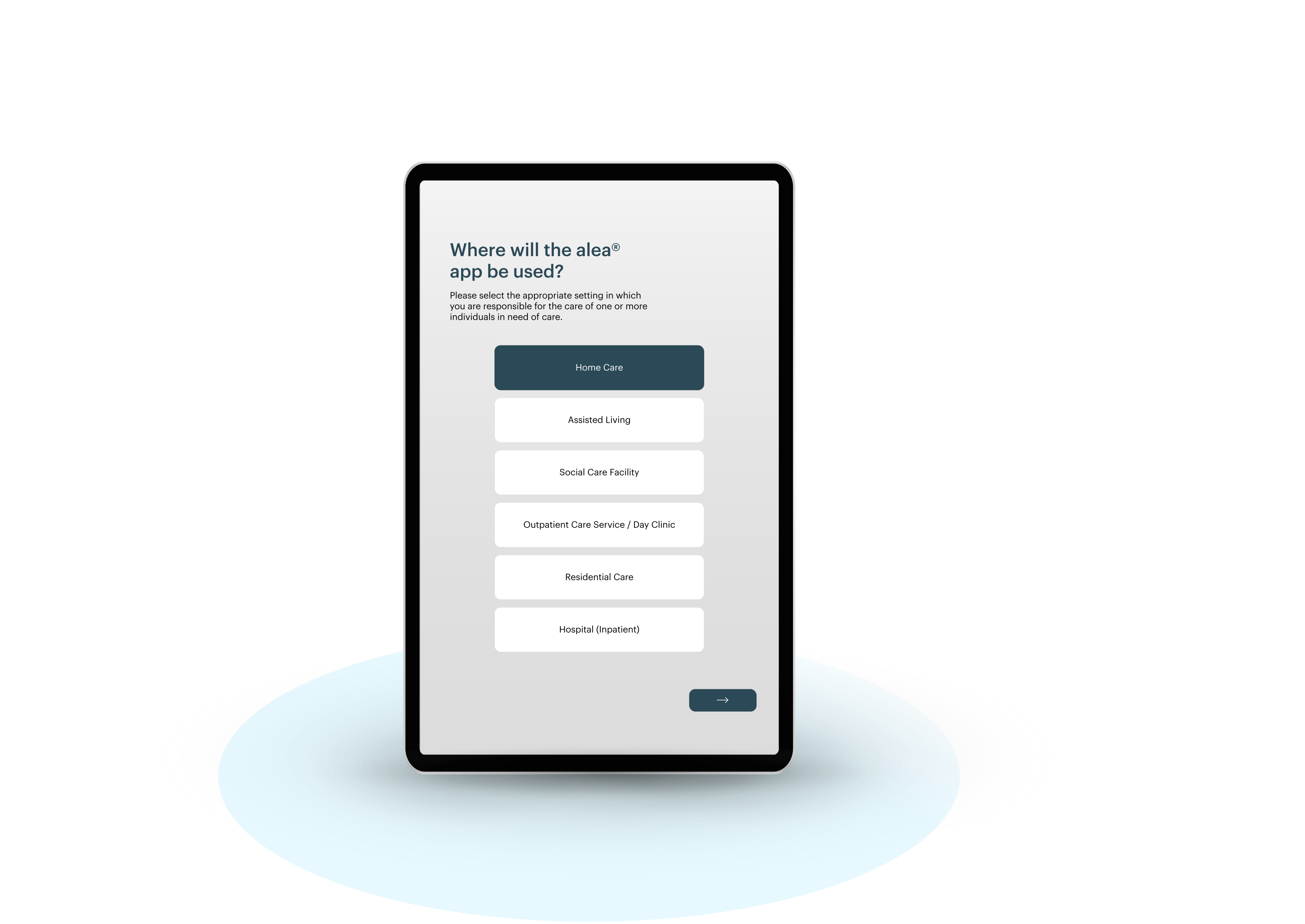
Home Care This care setting should be selected if you are a care recipient yourself or a family caregiver providing care for a care recipient in a home environment. alea can be used to support, enable, or enhance independent living. |
|
Assisted Living This care setting should be selected if you provide care and support to older adults or people in need of care who wish to live independently while receiving assistance when required. |
|
Social Care Facility This care setting should be selected if you are a caregiver or care professional with responsibility for care recipients within a supervised care facility. |
|
Home Care Service / Day Clinic This care setting should be selected if you work in an outpatient care environment (e.g., a mobile or home care service) and are responsible for the care of care recipients in day-based or home-oriented care settings. |
|
Residential Long-Term Care This care setting should be selected if you work in a nursing home or residential care facility and provide care and support to residents in a long-term care environment. |
|
Hospital (Inpatient Care) This care setting should be selected if you are a nurse, healthcare professional, nursing assistant, or similar care provider responsible for patient care within a clinical environment such as a hospital ward. |
Status Overview
-
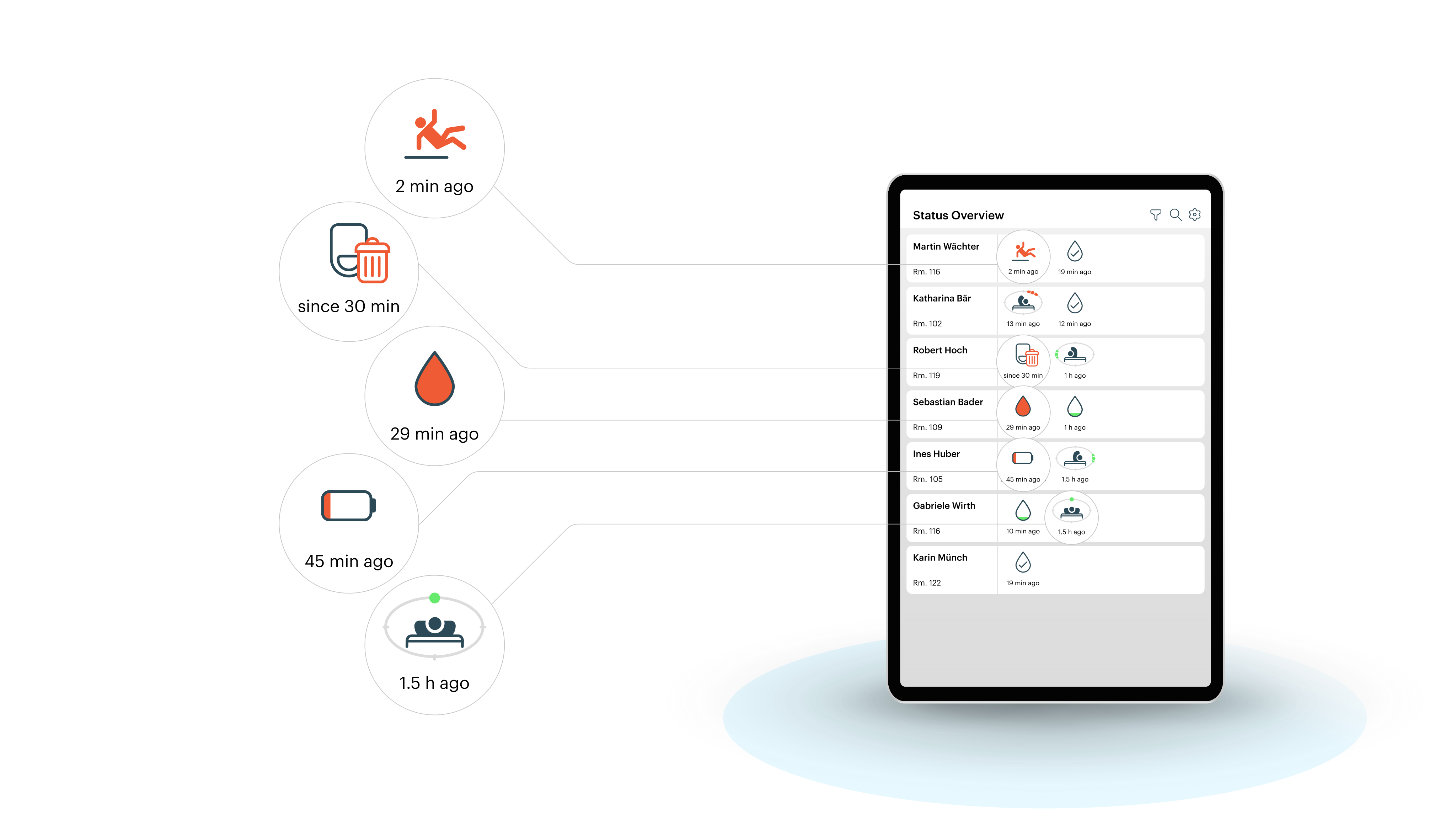
The functional center of the alea App provides a detailed overview of each care recipient's status for every activated system function.
-
This page is continuously displayed and updated.
-
Status bars are sorted in descending order of priority. Care recipients with urgent event statuses are displayed higher in the list than those with less urgent statuses.
-
Within each status bar, events are also arranged from left to right according to their priority and relevance.
|
Symbol |
Description |
|---|---|
|
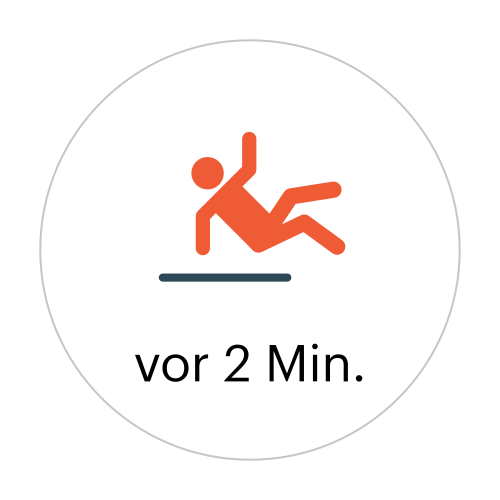
Suspected Fall Two minutes ago, an unusual movement or change in body position was detected for Martin Wächter. Please assess the situation on site. |
|
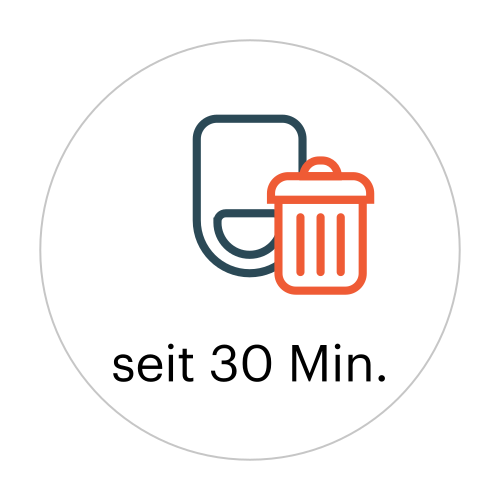
alea Clip Presumably Disposed Of The status has not been updated for 30 minutes because the alea Clip was likely disposed of together with the saturated smart incontinence product. The alea Clip can be used for up to 3 years. We therefore recommend retrieving it from the waste container and continuing to use it. |
|
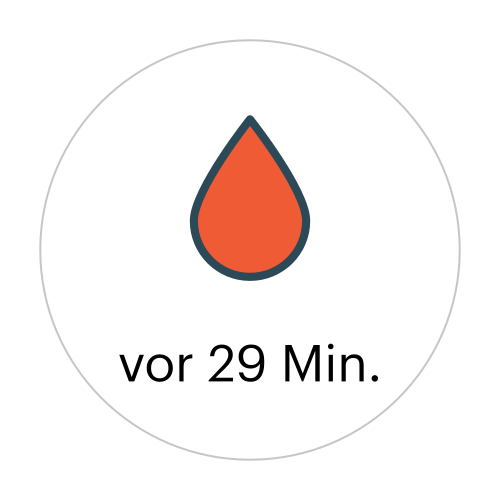
Urine Saturation Level "Full" Twenty-nine minutes ago, the configured fill level of Robert Hoch's compatible continence product was reached. Please assess whether a product change is required. |
|
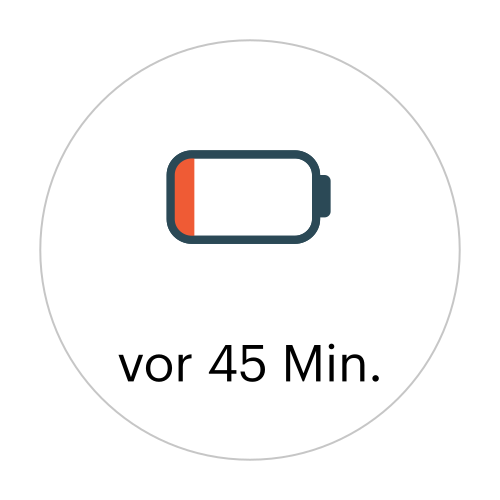
Charge alea Clip The battery of the alea Clip is running low. The alea Clip should soon be charged on the alea Dock and replaced with a fully charged alea Clip attached to the incontinence product. |
|
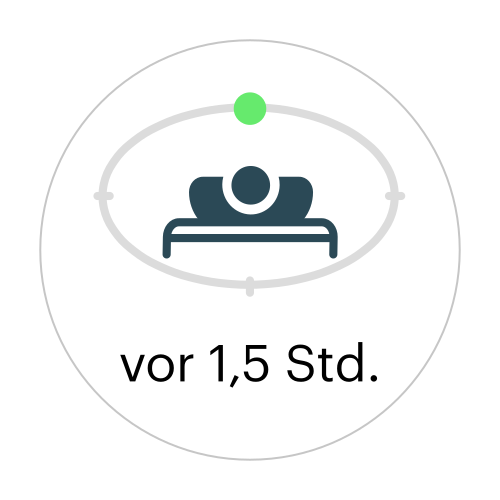
Movement to Supine Position One and a half hours ago, a change in body position was detected for Gabriele Wirth. The configured repositioning interval has not yet been reached. Once the configured repositioning interval has elapsed, the system will remind you to assess whether repositioning is required. |
|
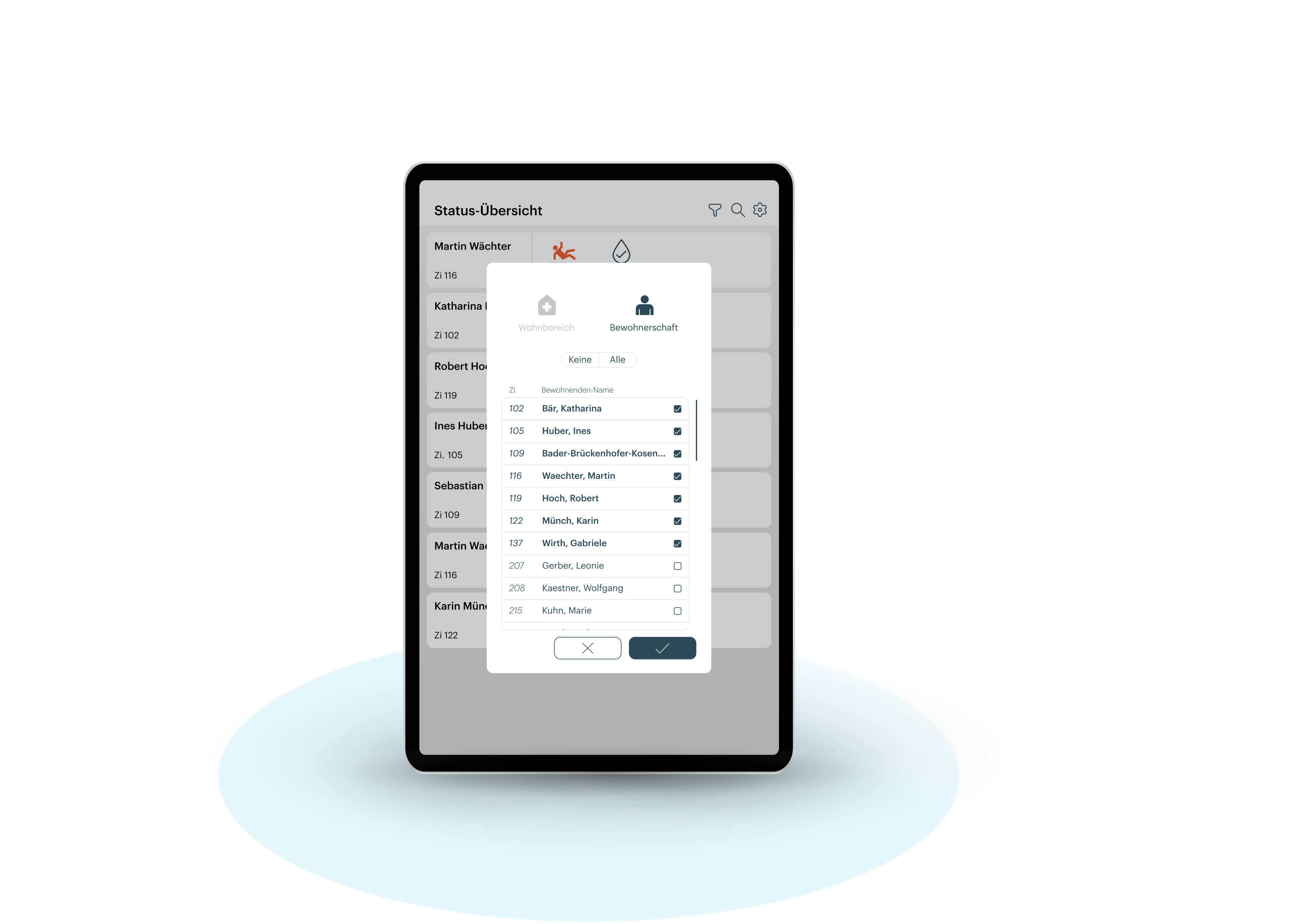
Filter: Care Recipient and Unit Selection
Search: Find Names or Room Numbers
Settings: Language, Care Managers, Account Information, Logout, etc.
|
Care Recipient Page
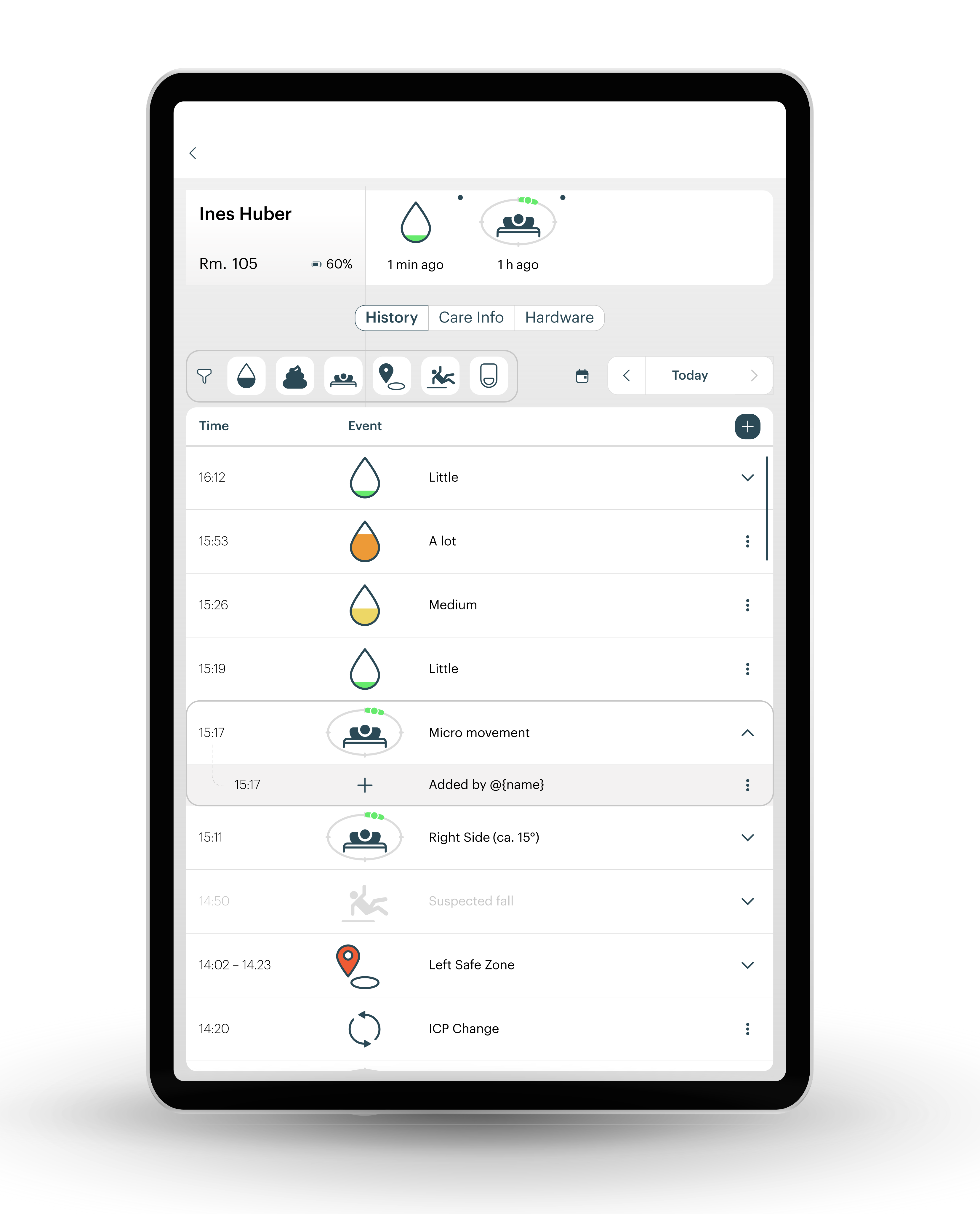
In this care recipient overview, you can view the current status, timeline, care-related information, and the status of the assigned hardware for an individually selected care recipient.
“History” Tab
All events of the current day are displayed here in chronological order.
Manual documentation entries can be created, viewed, and subsequently edited.
|
App Aspect |
Description |
|---|---|
|
Today (top right) / Date Selection |
Select the day for which information and events are displayed. |
|
Filter Bar (centered above the icon overview) |
Filter by event type (Continence, Repositioning, Area Exit, Fall Suspicion, System). |
|
Detail View (when clicking or tapping an icon) |
Detailed view of a manually adjusted event (shown here using the example of a “Micro-Repositioning” event at 3:17 PM). |
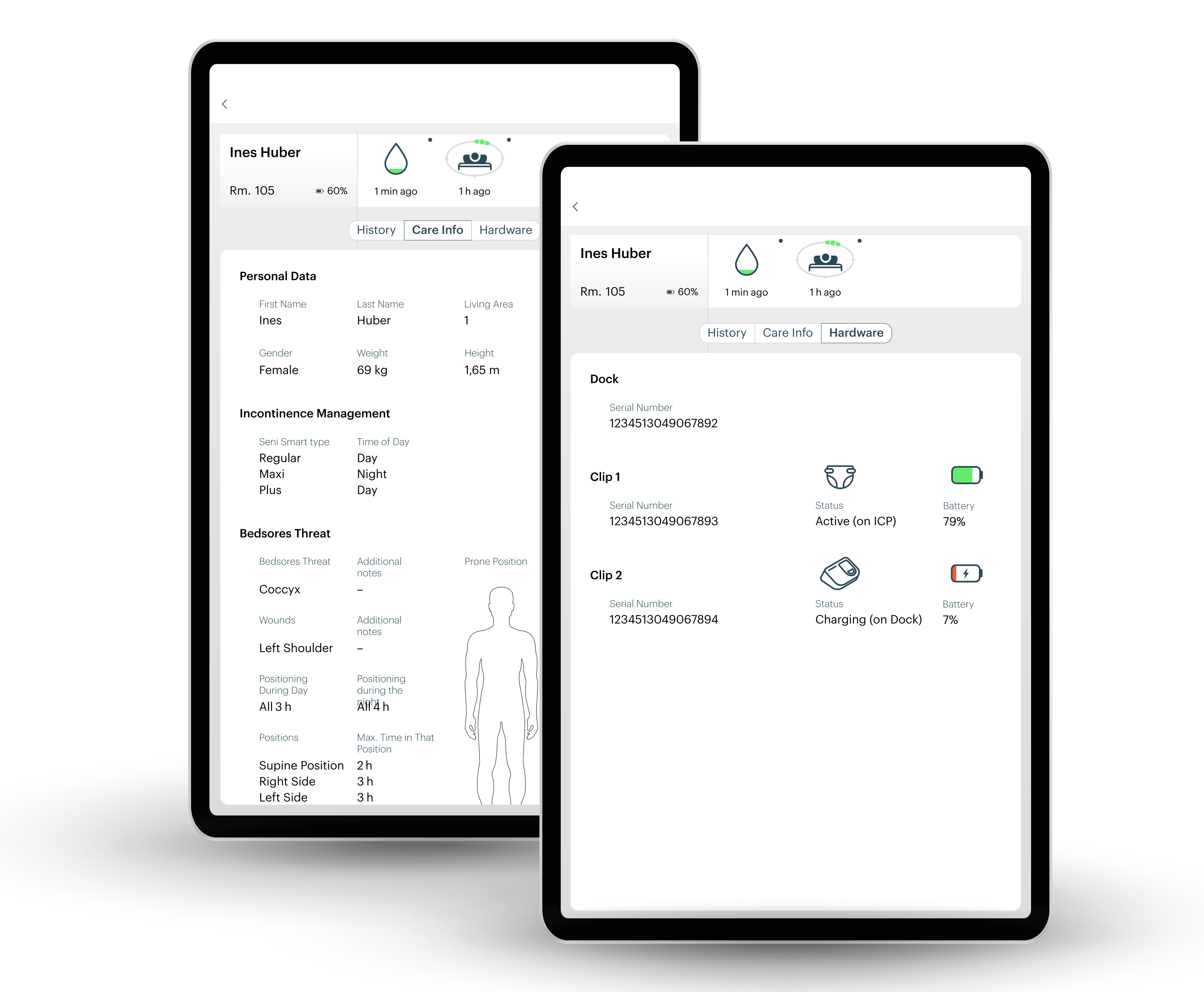
Maintenance info tab and hardware tab
Selection
Settings