2.4.1 | Creating new user accounts in the alea cockpit

General information

  • We recommend creating a separate alea app account for each carer. This way, the app can be used optimally, as carers can share responsibilities for the care recipients and mobile documentation can be assigned to each individual carer.

  • However, it is also possible to create a shared account that can be used by several carers at the same time. This is an advantage if not all carers have a mobile device.

  • The decision on the end device and account structure also depends on the person responsible for care or the care setting (inpatient, outpatient or home care).

Managing App Accounts
App-Accounts_marked.png
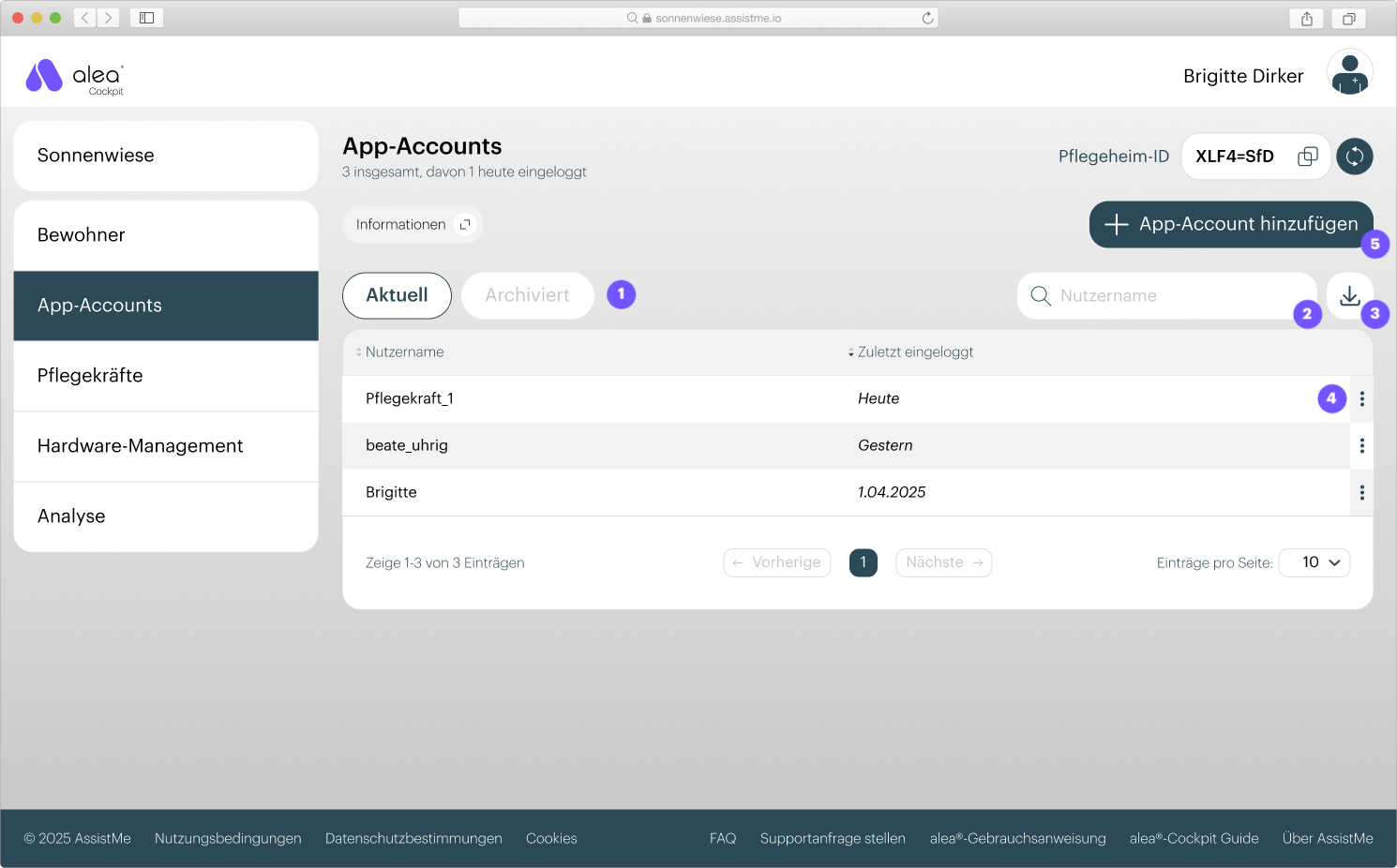
  • Within the App Accounts tab, you manage the users who have access to the alea App. Both individual user accounts and care-unit-specific user accounts are supported.

  • You will initially see a list of all current alea App users. By selecting the corresponding button, you can switch to the list of archived users (1).

  • You can search for usernames (2) or print the list and export it as a PDF or CSV file (3).

  • Existing users can be edited or archived (4). You can also create new App Accounts (5).

  • The Care Facility ID (6) is important for logging into the App. It is required during the initial login process and in the event of password recovery within the alea App.

  • Generate a new Care Facility ID on a regular basis to enhance data security.

Creating new App Accounts

Step 1

New-App-Account_1-marked.png
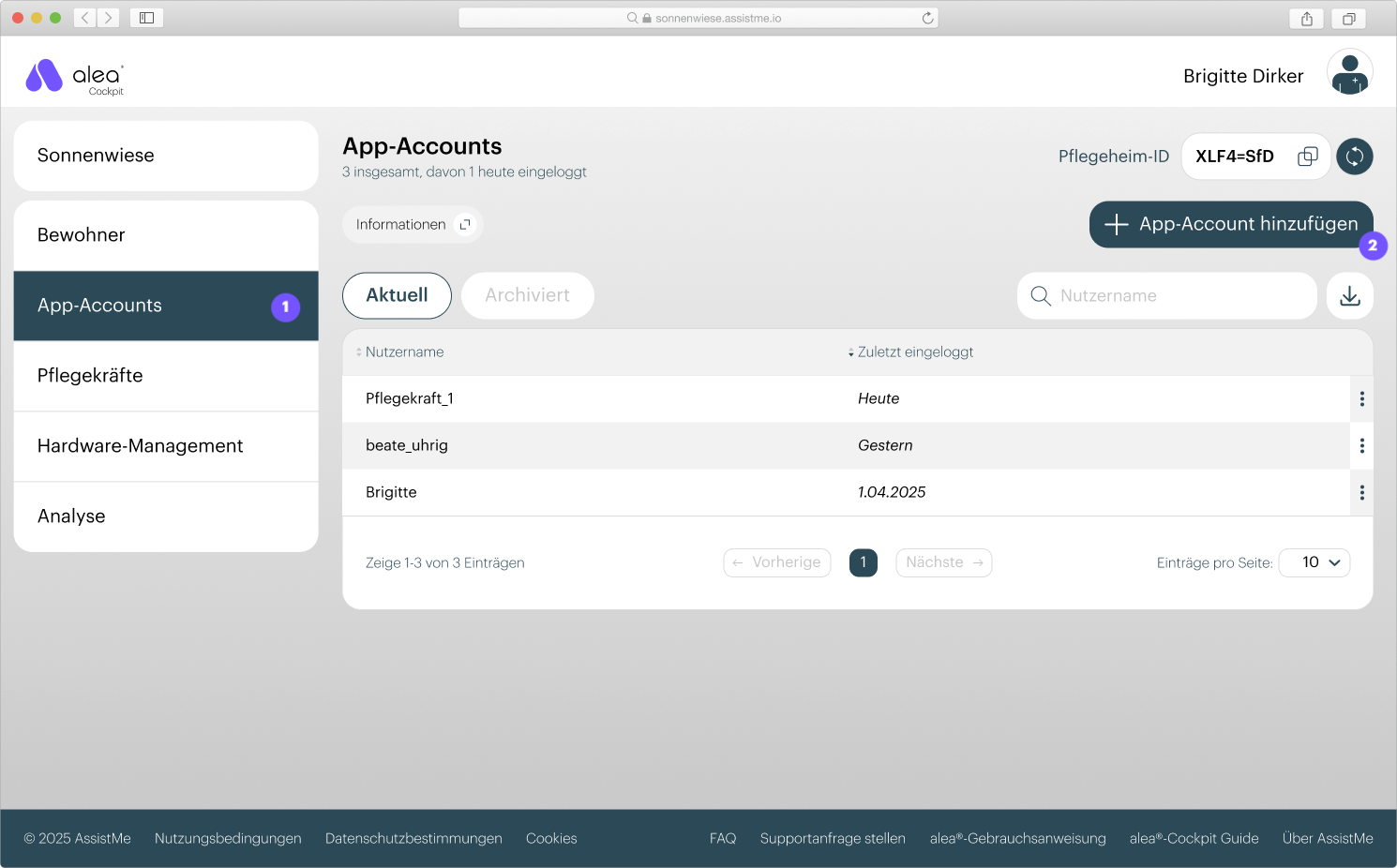
  • Ensure that you are in the App Accounts tab (1).

  • Then click the "Add App Account" button (2).

Step 2

New-App-Account_2.jpeg
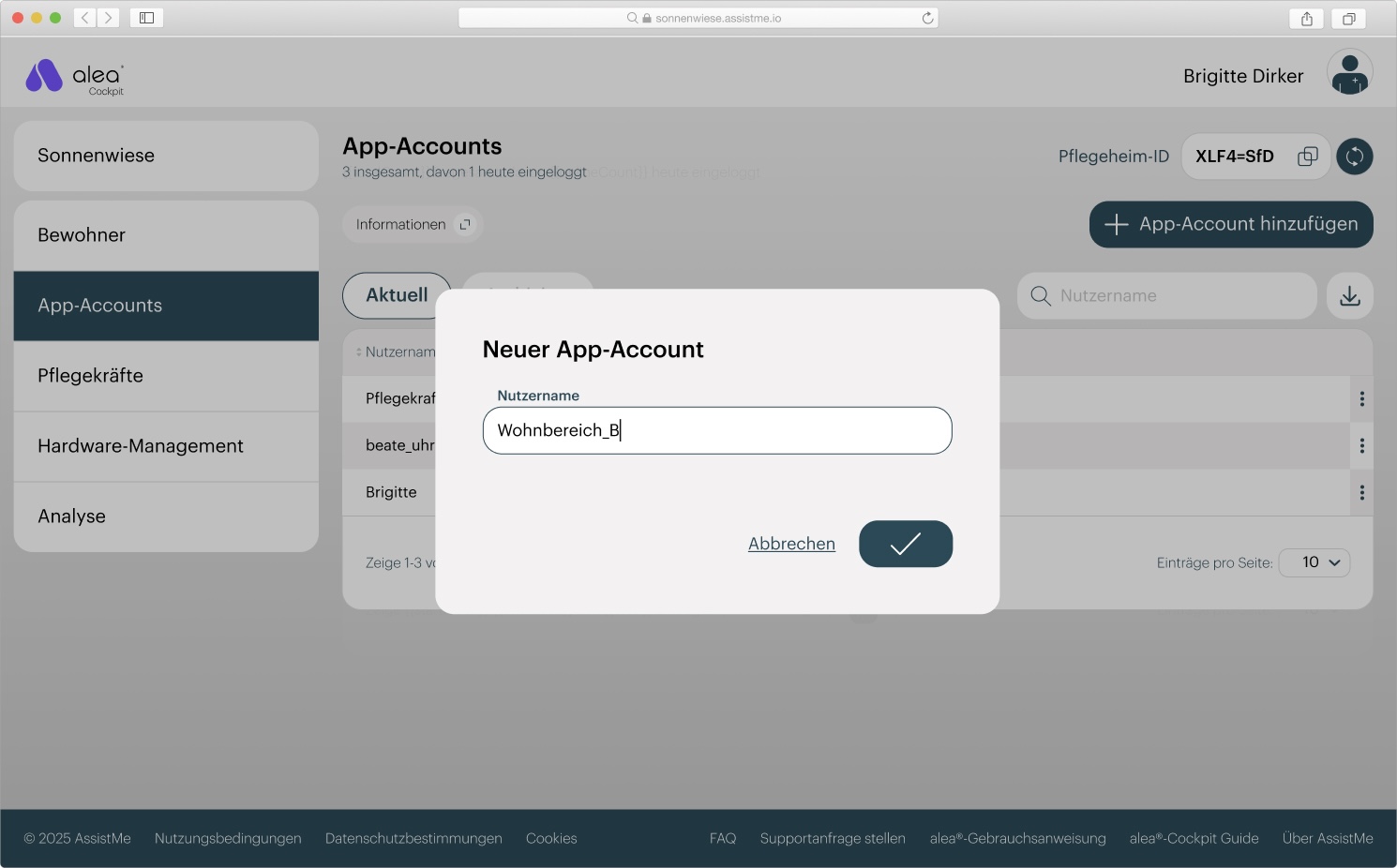
  • Enter the desired username and confirm your entry by clicking the checkmark button.

  • The account is then ready for use. The corresponding caregiver can log in to the alea App using the username and the Care Facility ID (see Section 2.4.3).