General Information
-
Care managers and other administrative users designated by the operator manage the relevant user accounts within the alea Cockpit for the respective wards, areas, or defined care settings.
-
The resulting access and registration information for the alea App is provided to the intended users or user groups through the designated secure communication channels.
Information on the Representation of the alea App in These Instructions for Use
-
The screens shown on this page are based on the use of the alea App on mobile devices.
-
The App sections and functions shown are functionally comparable within the browser application but may differ visually depending on the device, browser, software version, and screen size.
-
Mobile devices additionally provide device-specific functions such as operating system notification settings.
-
The visual examples shown are taken from an example residential long-term care setting.
-
The functional logic shown is applicable to all supported care settings available for selection.
-
Depending on the selected care setting and the operator configuration, minor differences may occur during registration and initial login.
Classification of the Login and Registration Examples Shown
-
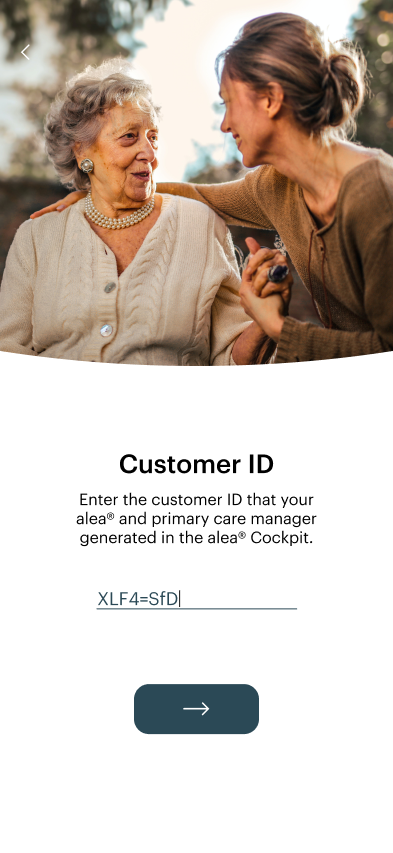
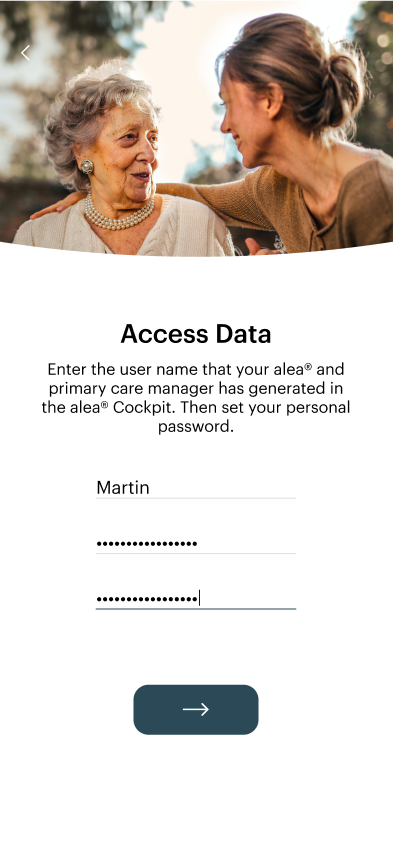
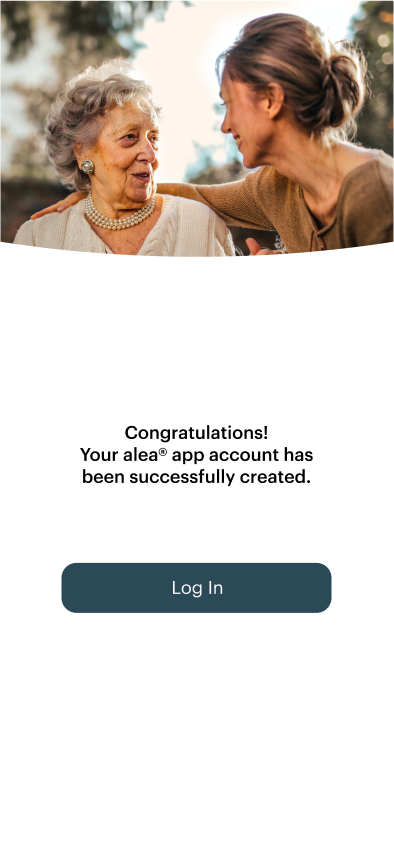
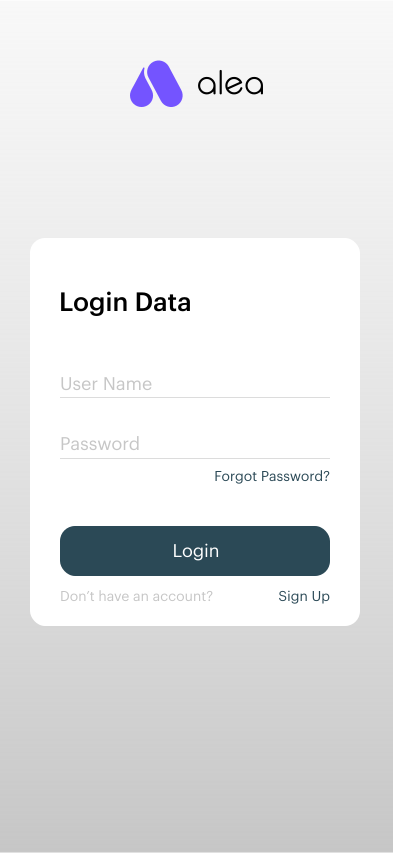
The screens and example workflows shown in this section are intended solely to illustrate a typical first-time login and initial user registration process.
-
Depending on the product version in use, care context, user role, enabled functions, and the organizational requirements of the respective facility, terminology, input fields, the sequence of individual steps, or visible selection options may differ.
-
In particular, the screens shown may contain example user identifiers, ward names, organization names, demonstration accounts, or other illustrative login credentials. These are provided solely to demonstrate the workflow and do not represent actual production credentials or mandatory field names.
-
For actual system use, only the credentials and role permissions provided by the responsible care managers, system administrators, or AssistMe are authoritative.
Example Screens for First-Time Use of the alea App
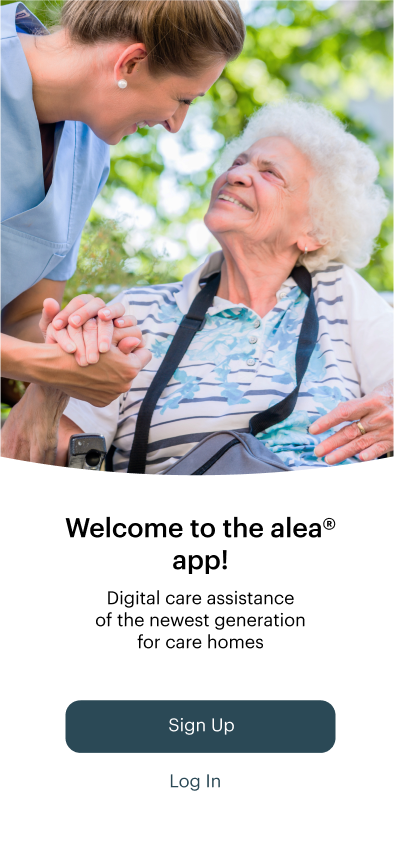
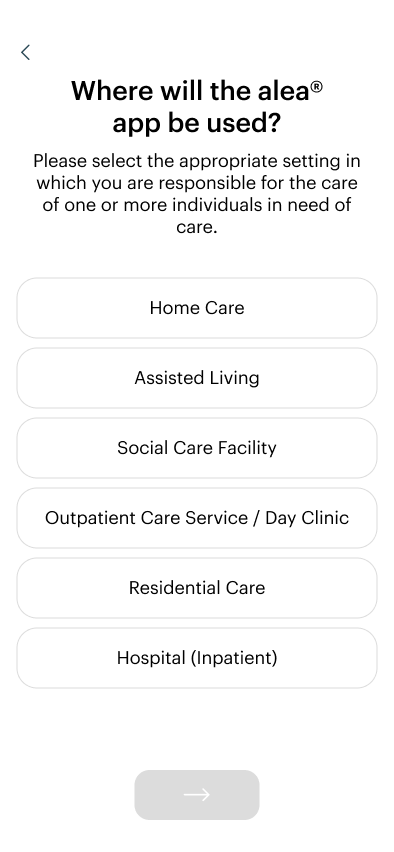
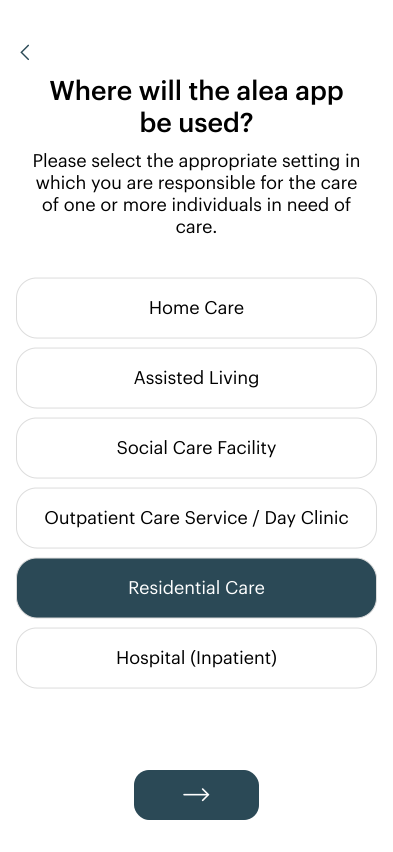
Selecting the Care Setting Using the Example of "Residential Care"
|
Stepep 1 of 3 |
|
|
Step 2 from 3 |
|
|
Step 3 from 3 |
|
Selecting the Care Setting Using the Example of "Home Care"
|
Step 1 of 3 |
|
|
Step 2 from 3 |
|
|
Stepep 3 from 3 |
|
Selecting Care Units and Care Recipients (Residential Care Facility)
|
Step 1 of 3 |
|
|
Step 2 from 3 |
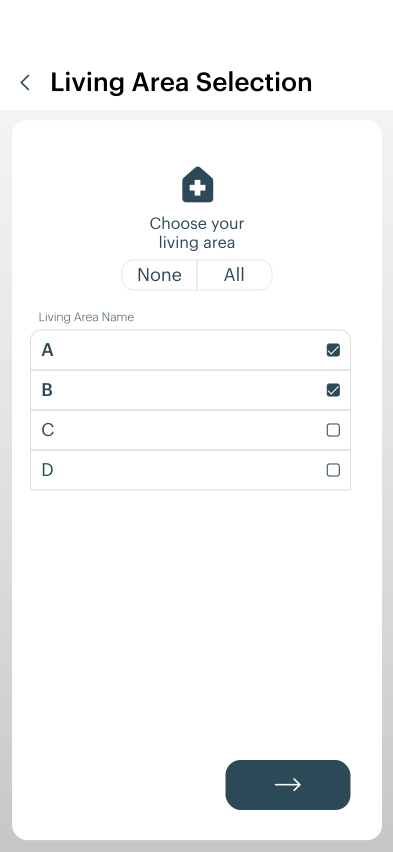
|
|
Step 3 from 3 |
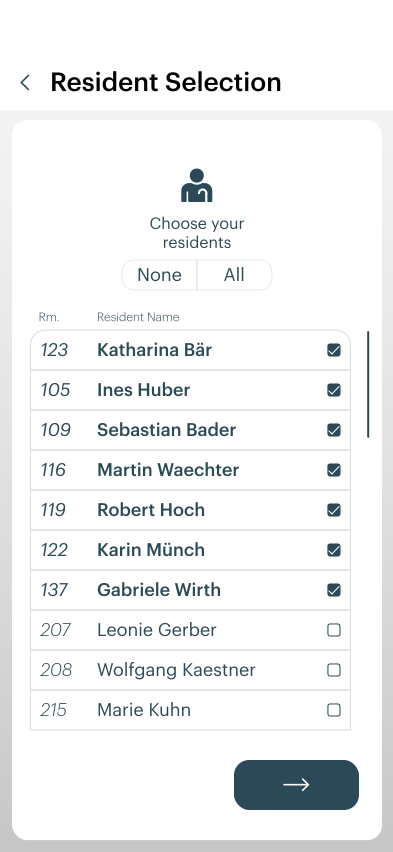
|
Language Selection in the alea App
|
Step 1 of 3 |
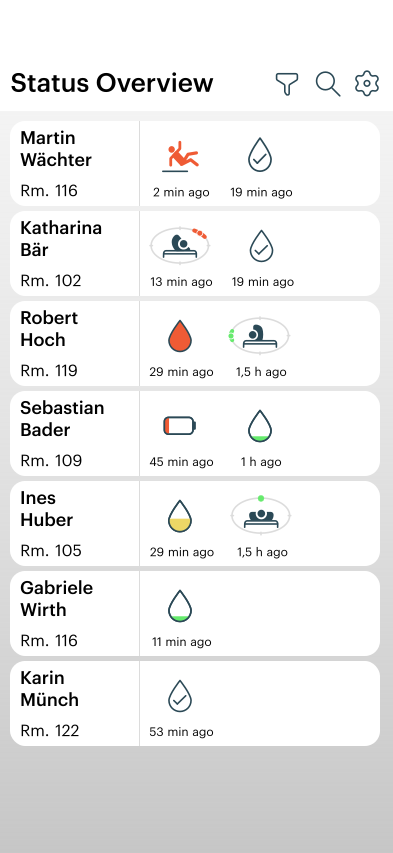
|
|
Step 2 from 3 |
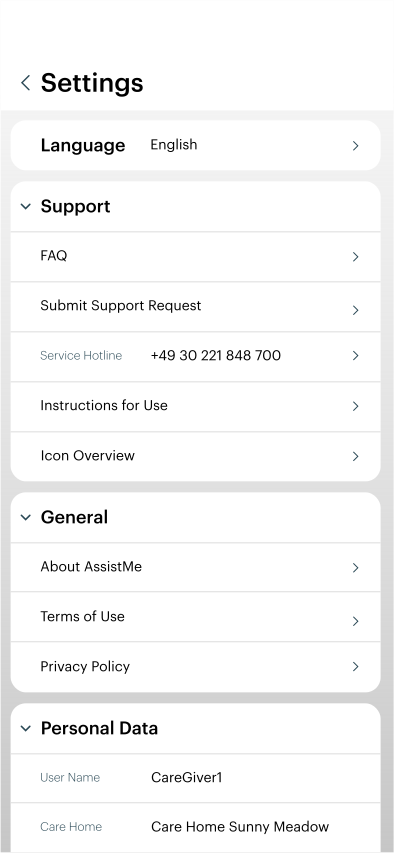
You can find help in the Settings section:
|
|
Step 3 from 3 |
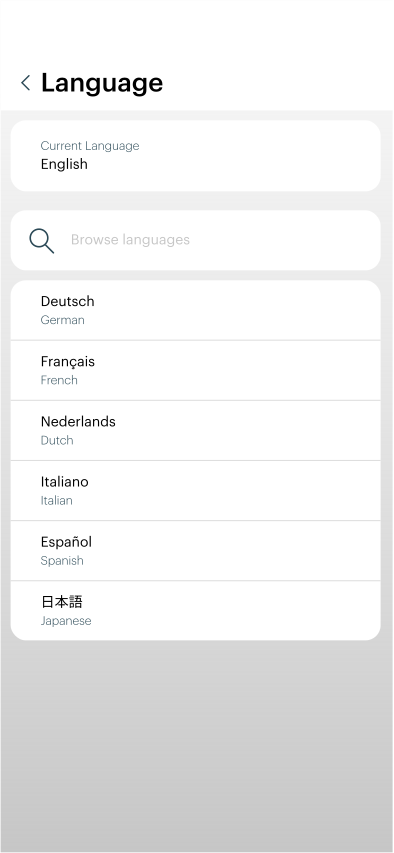
|
Activate notifications on iOS
.png?cb=7ff5c7cd9fc95aaab2b3811711a05563)
|
Step 1 of 3 |
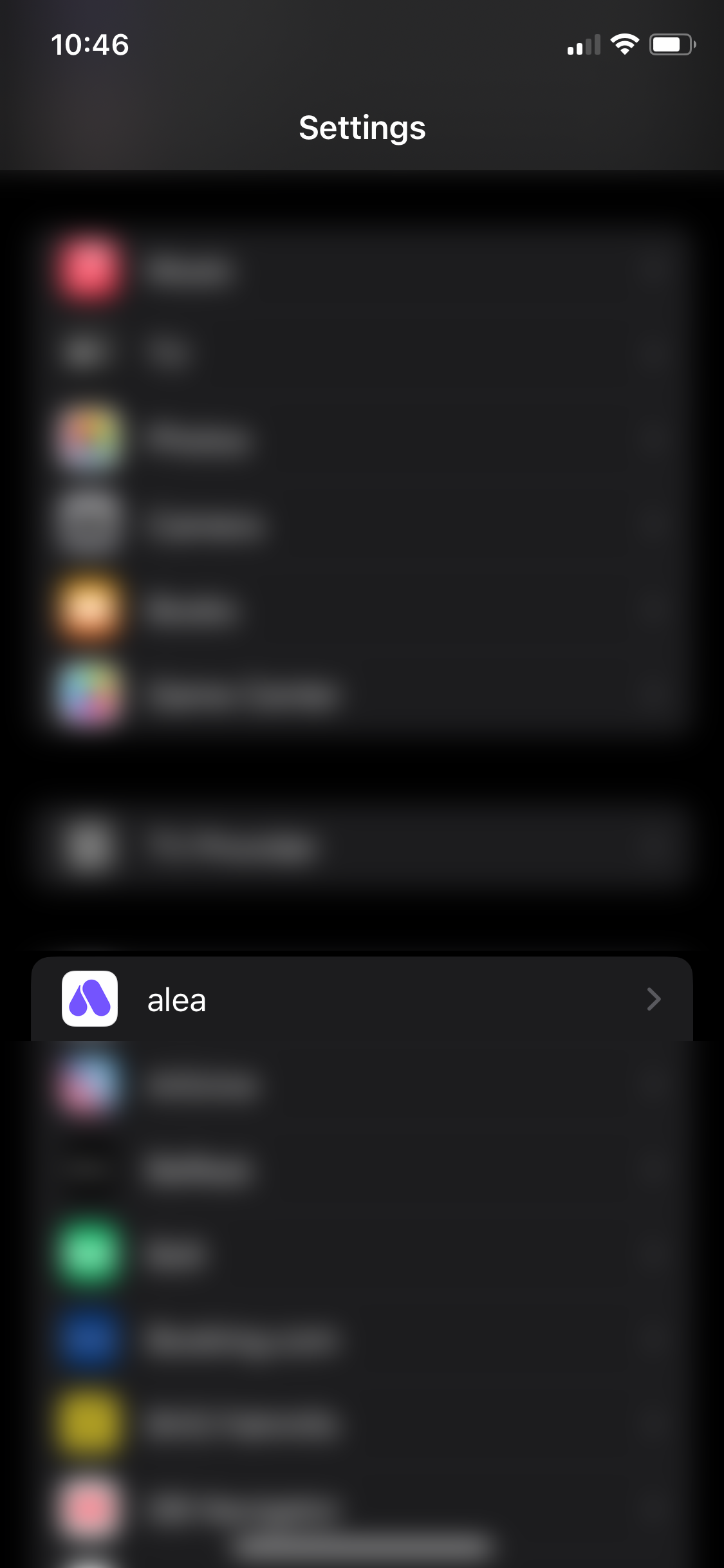
|
|
Step 2 from 3 |
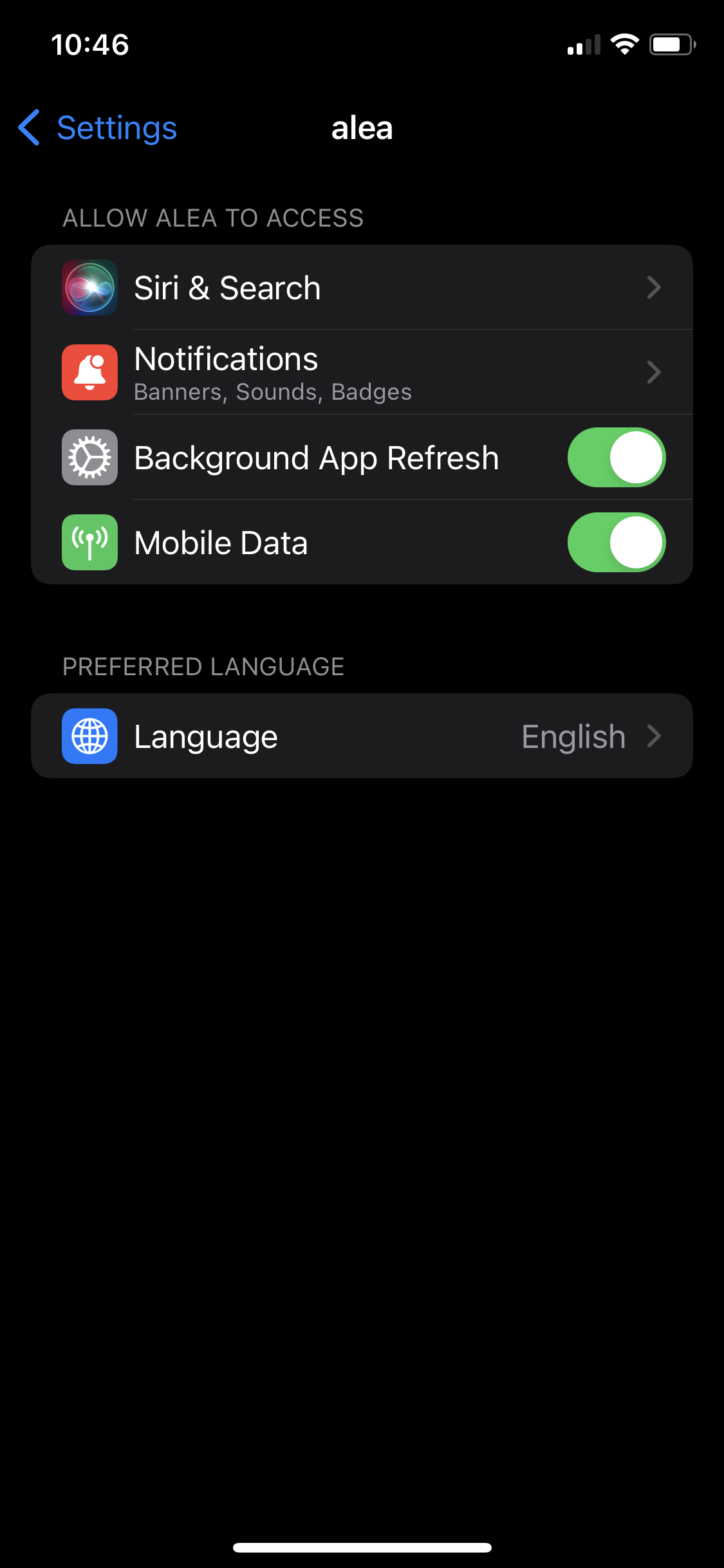
|
|
Step 3 from 3 |
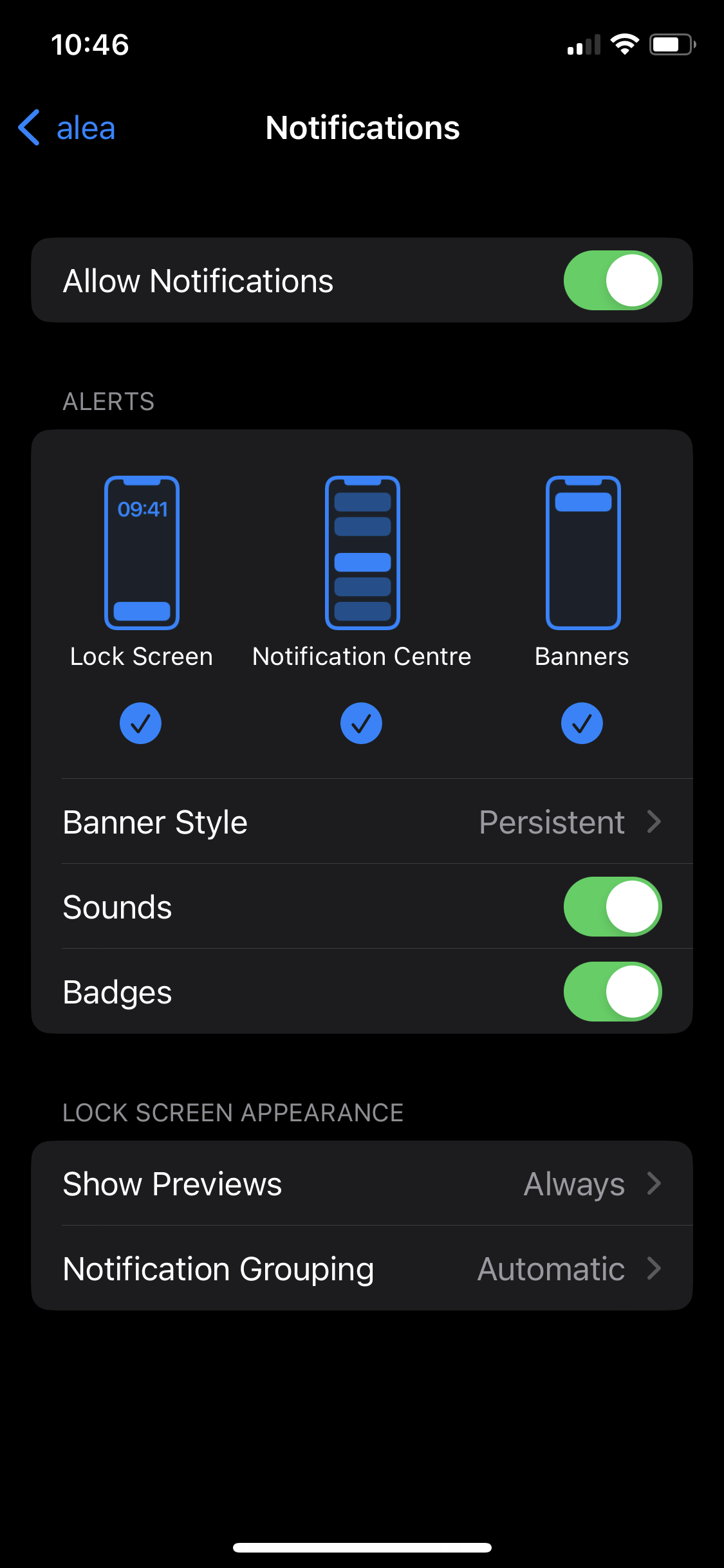
|
Activating notifications on Android

|
Step 1 of 3 |
.png?cb=1e13ac1690d9fb55b401f08cf7872a28)
|
|
Stepep 2 from 3 |
.jpeg?cb=293ef29d2626cf495ef7528cc55fd3bd)
|
|
Step 3 from 3 |
.jpeg?cb=604bc4017aa74bbe94c892c92ea54b62)
|
Service Information
Depending on the specific requirements, initial installation and functional verification may be performed on site by AssistMe or by an authorized AssistMe partner. In certain cases, however, initial installation and commissioning may also be carried out under the responsibility of the customer. An appropriate visual inspection should be performed to verify that all components are functioning correctly and connected as described in the preceding sections.